
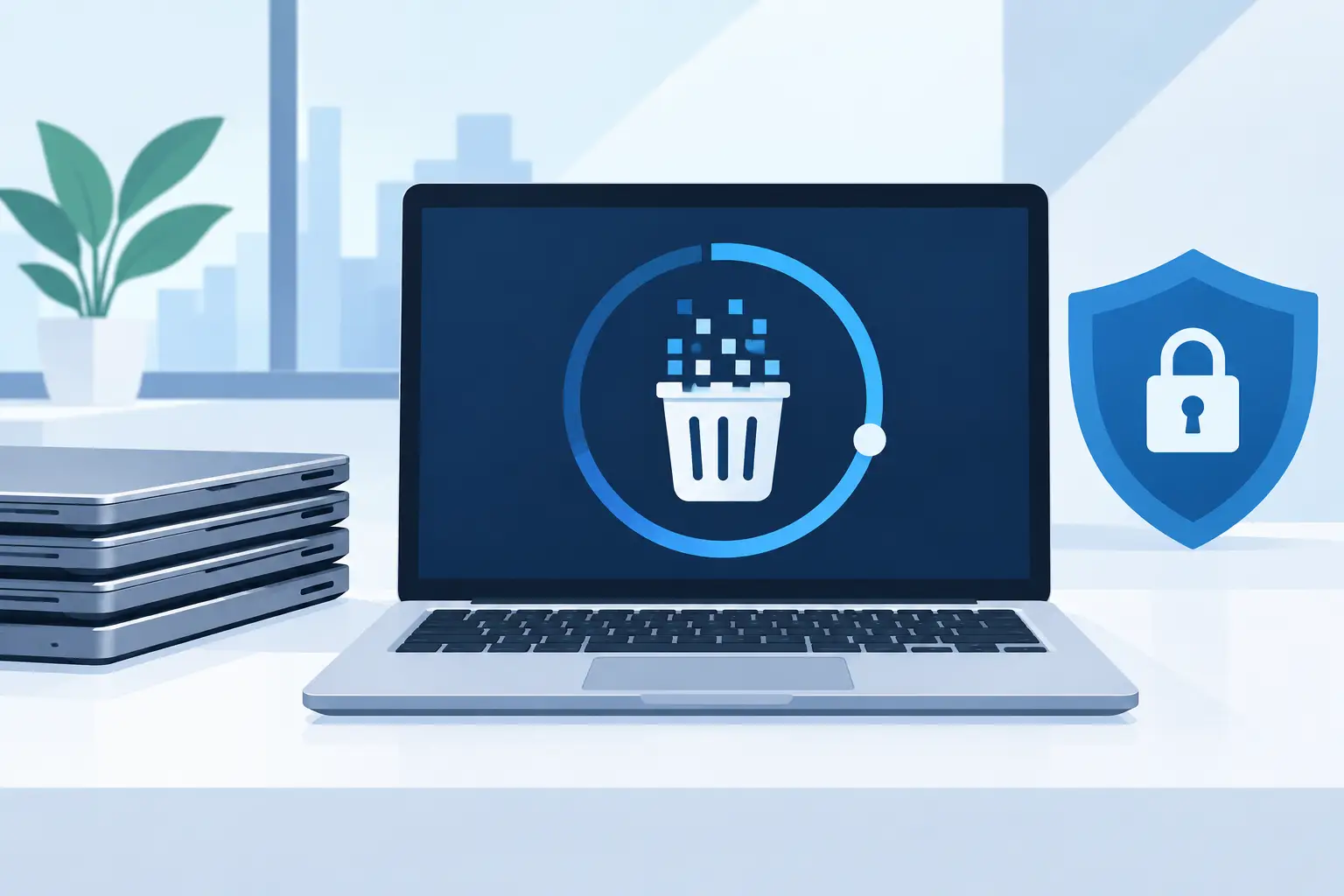
A retired laptop can still hold years of business activity: saved passwords, customer spreadsheets, tax files, HR records, browser sessions, cloud-sync folders, and email attachments. Laptop data wiping is the step that makes a device safe to reuse, sell, donate, recycle, or send for asset liquidation. For organizations, it should be a controlled disposition process, not a task assigned to whoever has time to clear out a storage room.
Deleting files or resetting a computer is not the same as removing the data. A proper process protects the organization, supports responsible electronics recycling, and gives IT, facilities, and operations teams a clear record of what happened to each device.
Why laptop data wiping needs a documented process
When a laptop leaves the organization, control over the hardware changes immediately. That is why the data must be addressed before the device enters resale, recycling, repair, donation, or disposal channels. The risk is not limited to obvious documents. Data may remain in user profiles, temporary folders, locally cached cloud files, email archives, recovery partitions, and application databases.
A documented process also reduces confusion between departments. IT may know which computers contain sensitive information, while office managers or facilities teams may coordinate pickup and storage. Without a defined workflow, equipment can sit in unsecured closets, be moved without an asset record, or be mixed with devices that have not been cleared.
For many organizations, the practical standard is simple: identify each laptop, maintain custody, apply an appropriate data destruction method, document the result, and release the equipment only after the required verification is complete. The exact method depends on the device, its condition, the data it contained, and whether the hardware will be reused.
Deleting, resetting, and wiping are different actions
Deleting a file generally removes the system’s reference to that file. The underlying data may remain recoverable until it is overwritten. Emptying the recycle bin does not change that basic limitation.
A factory reset can be useful when preparing a device for internal reassignment, but it should not automatically be treated as verified data destruction. The effectiveness of a reset varies by operating system, device configuration, and whether all storage areas were included. A reset may also fail if the drive is damaged or the device cannot boot.
Laptop data wiping refers to a deliberate process that sanitizes the storage media so data cannot be practically recovered through ordinary forensic methods. Depending on the drive and the organization’s requirements, this may involve approved overwrite procedures, cryptographic erasure, or physical destruction. The right choice is not always the same for every device.
The storage type affects the method
Older laptops commonly use hard disk drives, or HDDs. These drives store data magnetically and can often be sanitized using an appropriate overwrite process when the drive is functional. A successful wipe may allow the laptop or drive to be reused, extending the useful life of the equipment.
Many newer laptops use solid-state drives, or SSDs. SSDs manage data differently from HDDs, using wear leveling and reserved memory areas that can make traditional overwrite methods less predictable. For SSDs, a manufacturer-supported secure erase or cryptographic erase may be more appropriate when available and verified.
Encryption changes the discussion but does not remove the need for a policy. If a laptop was fully encrypted from the start and the encryption keys can be securely destroyed, cryptographic erasure can be an efficient method. However, the organization needs confidence that encryption was actually enabled, the keys are properly managed, and no unencrypted copies remain elsewhere on the device.
If the drive is failed, inaccessible, or too damaged to validate a logical wipe, physical destruction is often the more dependable option. Shredding the storage device prevents reuse, but it may be the appropriate trade-off for laptops that held highly sensitive data or cannot be processed reliably.
Start with an asset and data inventory
Before equipment is staged for pickup, create a basic disposition list. It does not need to be complicated, but it should connect the device to your organization and its data-handling requirements. Record the asset tag, serial number, make and model, assigned user or department, storage type if known, and intended disposition.
This inventory helps separate devices that can be resold or reused from devices that require destruction. It also helps locate exceptions early. A laptop assigned to finance, legal, human resources, engineering, or an executive may warrant a different review than a shared training device with limited local storage.
Do not overlook accessories and removable media. USB drives, external hard drives, SD cards, docking stations with embedded storage, and old backup devices can contain business data too. During a cleanout, these items are easily placed in the same box as keyboards and cables without being identified.
Decide what must be preserved first
A wipe is permanent when done correctly. Confirm that files subject to retention requirements have been transferred to an approved system before the device is sanitized. This can include accounting records, personnel documentation, project files, legal-hold materials, and regulated records.
The goal is not to keep every old laptop image forever. It is to make an intentional decision about preservation before destruction. That distinction prevents a later scramble for information that was never backed up.
Maintain chain of custody from office to final disposition
Data security does not end when the laptop is placed in a recycling bin. Organizations should know who handled the equipment, where it was stored, when it was collected, and what happened to it afterward. This is the chain of custody.
Keep retired laptops in a secured staging area rather than a public hallway, loading dock, or open supply room. Limit access to staff who are involved in the disposition process. When equipment changes hands, use a pickup record or similar transfer document that identifies the quantity and type of assets released.
For organizations with multiple Bay Area offices, timing matters. It may be more secure and more cost-effective to consolidate devices into a managed pickup rather than send small, undocumented batches out through different channels. This also gives staff one clear process for handling computers, servers, network equipment, and other end-of-life electronics.
Ask for verification, not just a promise
A vendor should be able to explain how it handles data-bearing devices and what documentation is provided. The most useful records tie the work back to your asset list or shipment. Depending on the service and disposition method, documentation may include serial-number reporting, certificates of data destruction, pickup records, and recycling records.
There is a practical trade-off here. Serial-level reporting offers stronger traceability, but it takes more handling and may not be necessary for every low-risk device. Organizations should decide their documentation requirements before scheduling service, especially if they must satisfy internal audit, client, insurance, regulatory, or procurement obligations.
Be specific about devices that need physical destruction. A general electronics recycling pickup may be appropriate for monitors, cables, keyboards, and non-data-bearing equipment, while laptops, servers, hard drives, and certain network devices require a defined data destruction instruction. Clear separation avoids assumptions at the point of collection.
Build laptop data wiping into the offboarding schedule
The best time to plan data disposition is before an employee’s final day or a hardware refresh deadline. Human resources, IT, and managers should have a simple handoff: recover the device, confirm access changes, preserve required business records, and route the laptop into the approved wiping or destruction process.
For refresh projects, schedule enough time for inventory and review. A rushed office move or lease turnover often produces mixed loads of working laptops, broken devices, batteries, printers, and loose storage media. Early planning allows the organization to identify what is eligible for reuse or buyback and what should be recycled or physically destroyed.
I Got E-Waste works with Bay Area organizations that need commercial electronics pickup, secure data destruction, and responsible handling of retired IT equipment. For qualified volumes, coordinated pickup can reduce the burden on internal teams while keeping the disposition process organized.
Common mistakes that create avoidable exposure
The most common failure is assuming that a password protects a retired laptop. It does not. Passwords can be bypassed, drives can be removed, and devices may be stored for months before anyone checks their status.
Another mistake is treating all laptops alike. A functioning, encrypted laptop may be a candidate for controlled reuse after verified sanitization. A broken laptop with a failed SSD may need physical media destruction. Applying the same approach to both can either create unnecessary cost or leave an unacceptable gap.
Finally, avoid relying on verbal confirmation alone. If data destruction matters to the organization, retain the relevant records. Documentation is what turns a good intention into an accountable process.
A storage room full of retired laptops is not just an operations problem. It is an unresolved data-handling decision. Set the standard before the next refresh, assign ownership, and move devices through a documented path that matches the sensitivity of the information they once held.